In this article, we will help you to manage your Shopify mapping in Webbee's MapMyChannel app. Managing your mapping configuration consists of four sections mentioned below:
- Shipping Method
- Payment Method
- Tax Method
- Carrier Name
Overview
Mapping shipping carriers and shipping methods in MapMyChannel is essential to ensure that orders are correctly passed from your sales channels to your ERP or fulfillment partners.
Without proper mapping, orders may fail to sync or be assigned incorrect delivery partners, leading to delays or fulfillment errors.
By configuring these mappings:
You ensure accurate and smooth order fulfillment.
Prevent errors caused by mismatched carrier or method names between systems.
Maintain consistency in logistics and customer communication.
How to Set Up Shopify Mapping in MapMyChannel?
Step 1: Open the MapMyChannel app.
Step 2: Go to the "Integration" page.
Step 3: From your Shopify sales channel, select "Manage your Mappings."
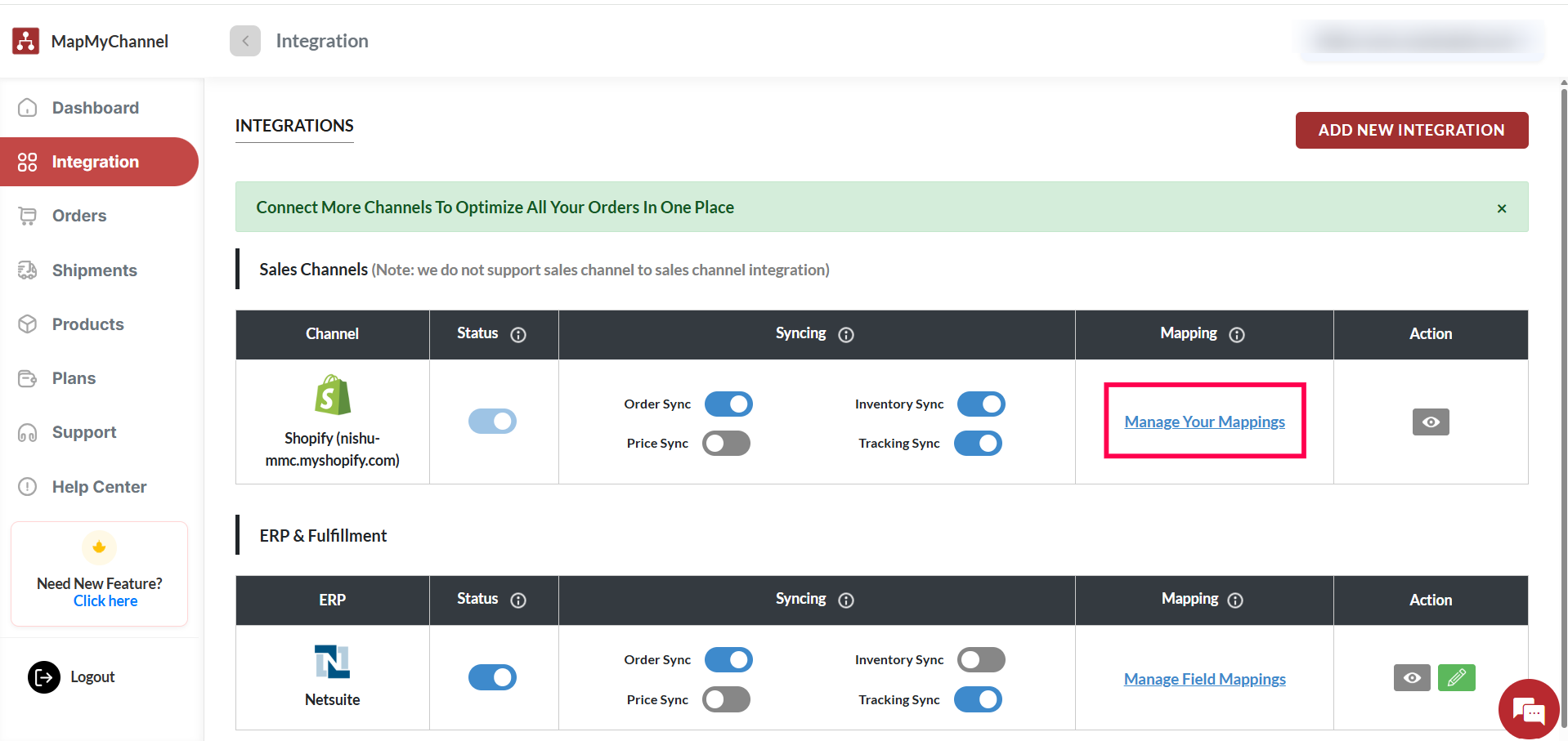 MMC's Shopify Sales Channel (Manage Your Mappings) Configuration
1. Shipping Method
This shipping method allows you to map your Shopify shipping methods to NetSuite shipping methods. To do this, select the Shopify shipping method from the drop-down, enter the NetSuite shipping method's field internal ID, and click on the plus icon. Refer to the image below.
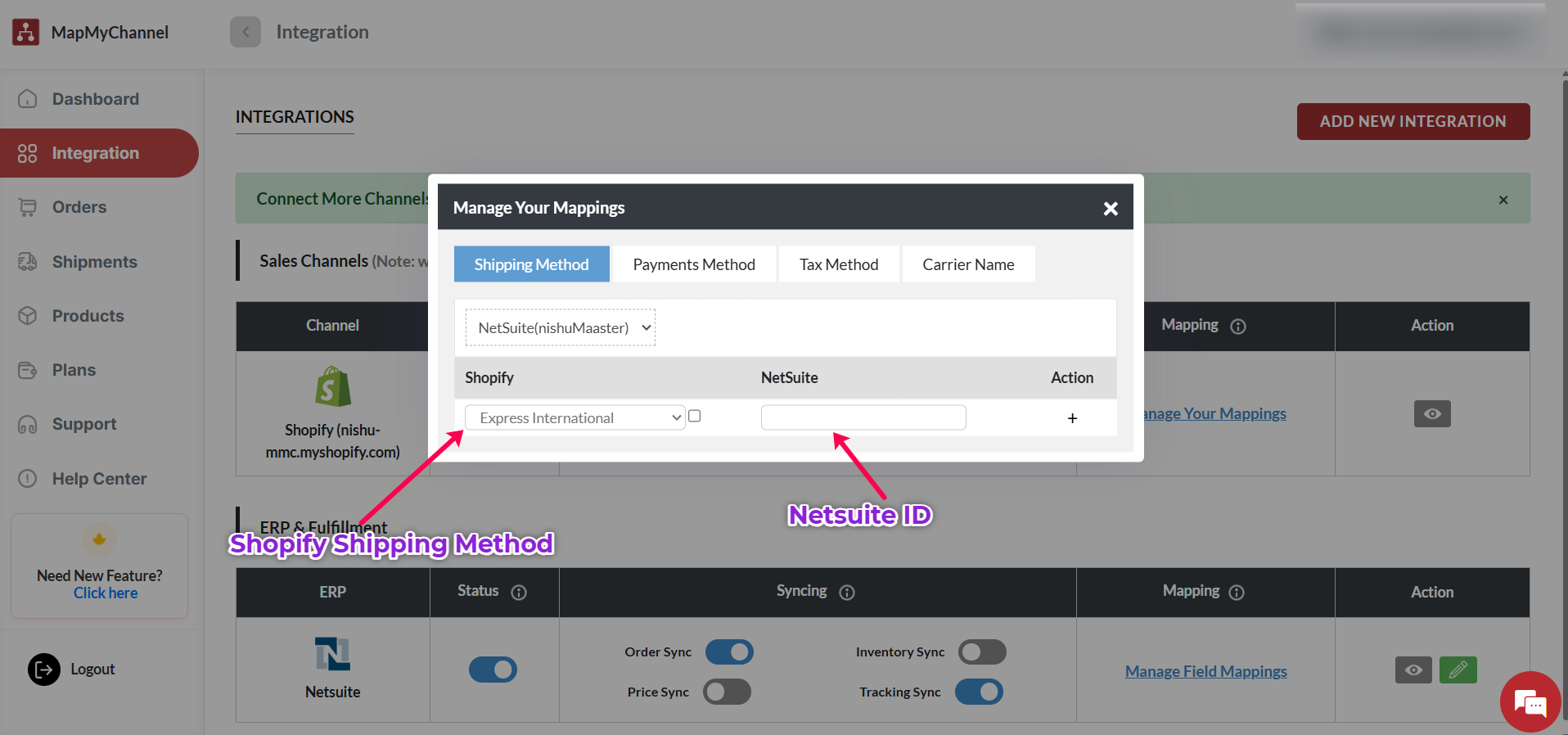 MMC's Shopify Shipping Method Mapping to NetSuite Shipping Method
If you have created custom Shopify shipping methods, then click on the checkbox, enter the exact Shopify shipping method name, and then enter the NetSuite shipping method internal ID and click on the plus icon. Once created, you can delete the mapping by clicking on the delete icon or add more by clicking on the plus icon under the Action column. Refer to the image below.
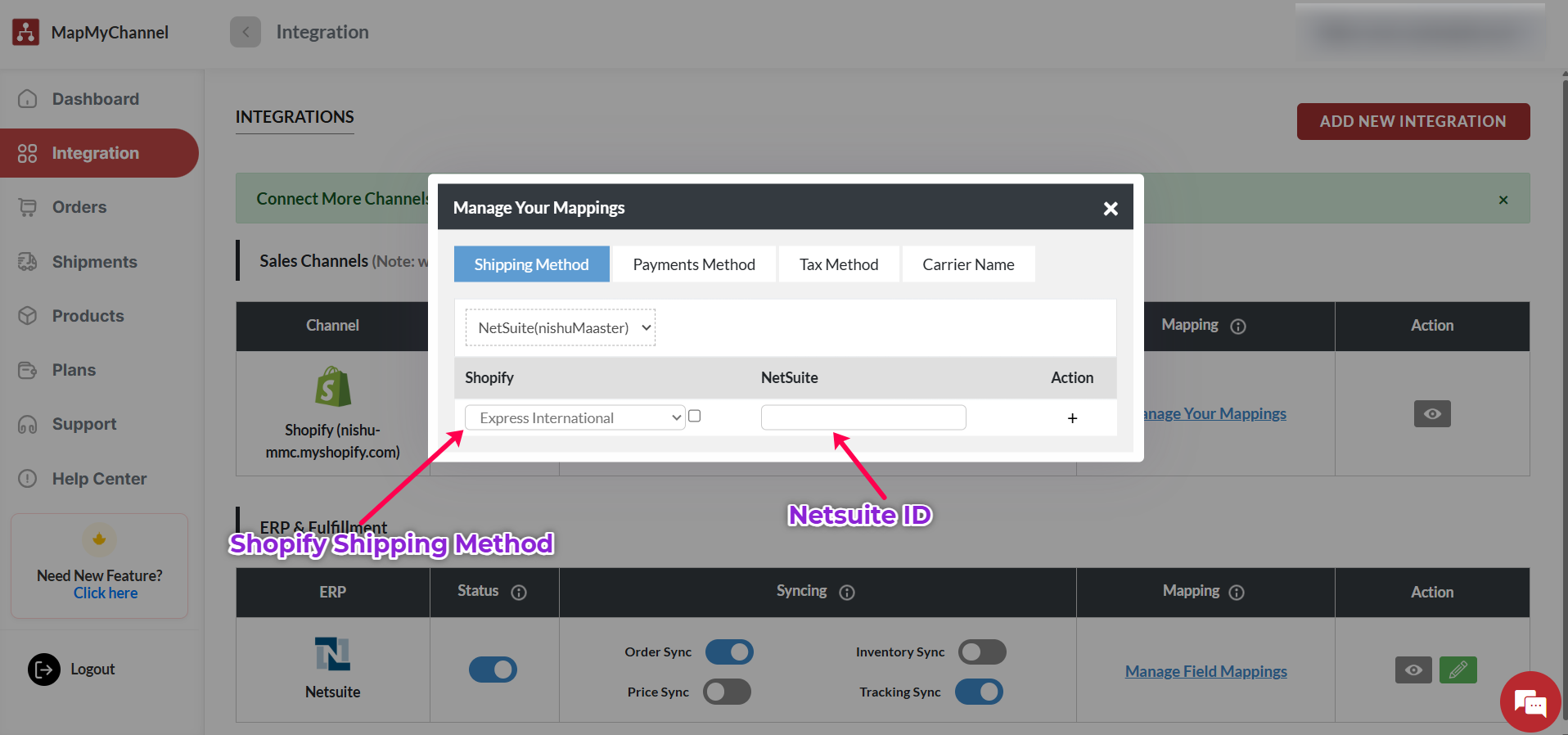 MMC's Custom Shopify Shipping Method Mapping to NetSuite Shipping Methods
2. Payment Method
This payment method allows you to map your Shopify payment methods to NetSuite payment methods. To do this, enter the Shopify payment method name, enter the NetSuite shipping method name and Chart A/C internal ID, and click on the plus icon. Similarly, you can add multiple payment methods by clicking on the plus icon and can delete the existing one by clicking on the trash can icon. Refer to the image below.
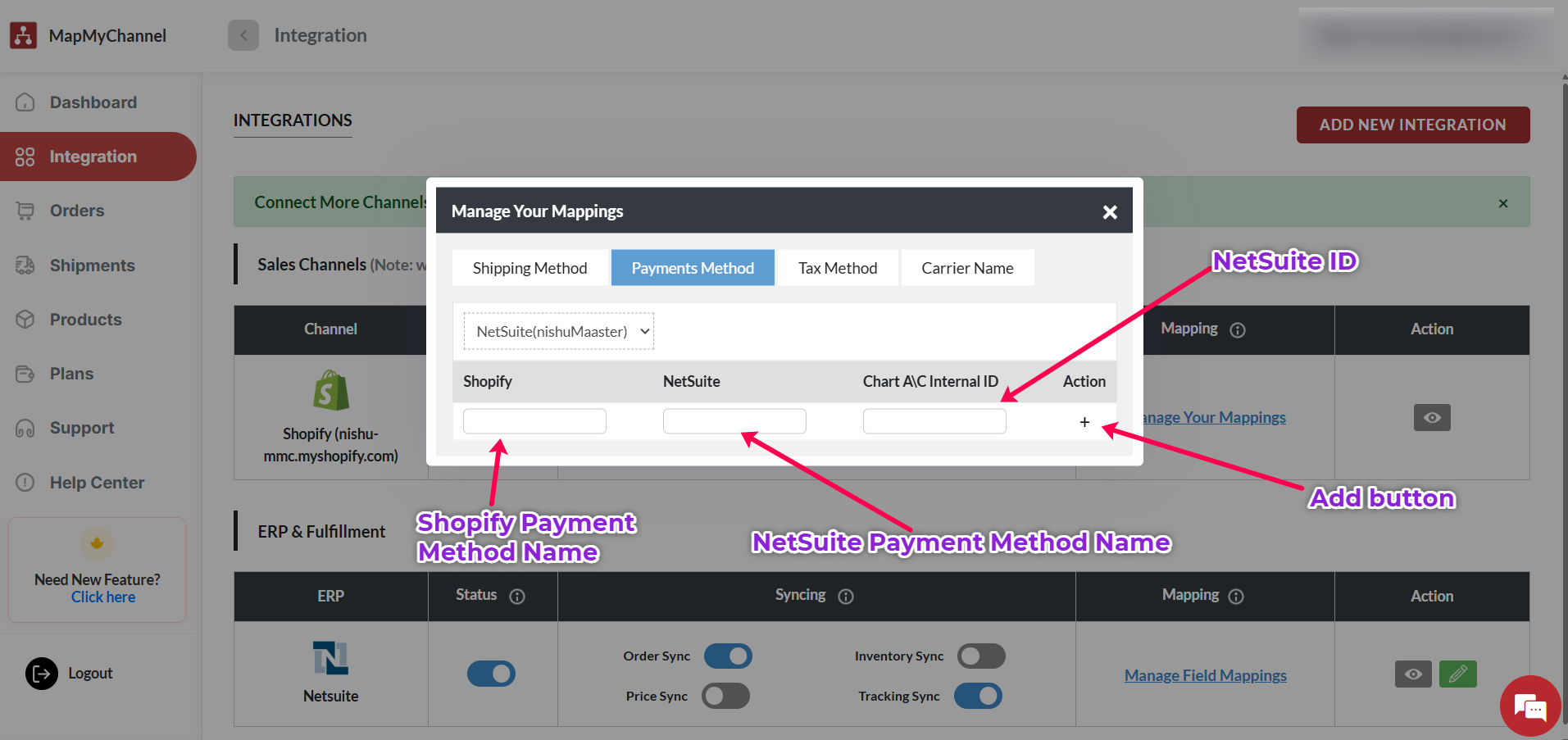 MMC's Shopify Payment Method Mapping to NetSuite Payment Method
3. Tax Method
This tax method allows you to map your Shopify tax methods to NetSuite tax methods. To do this, enter the Shopify tax method name, enter the NetSuite tax method's field internal ID, and click on the plus icon. Refer to the image below.
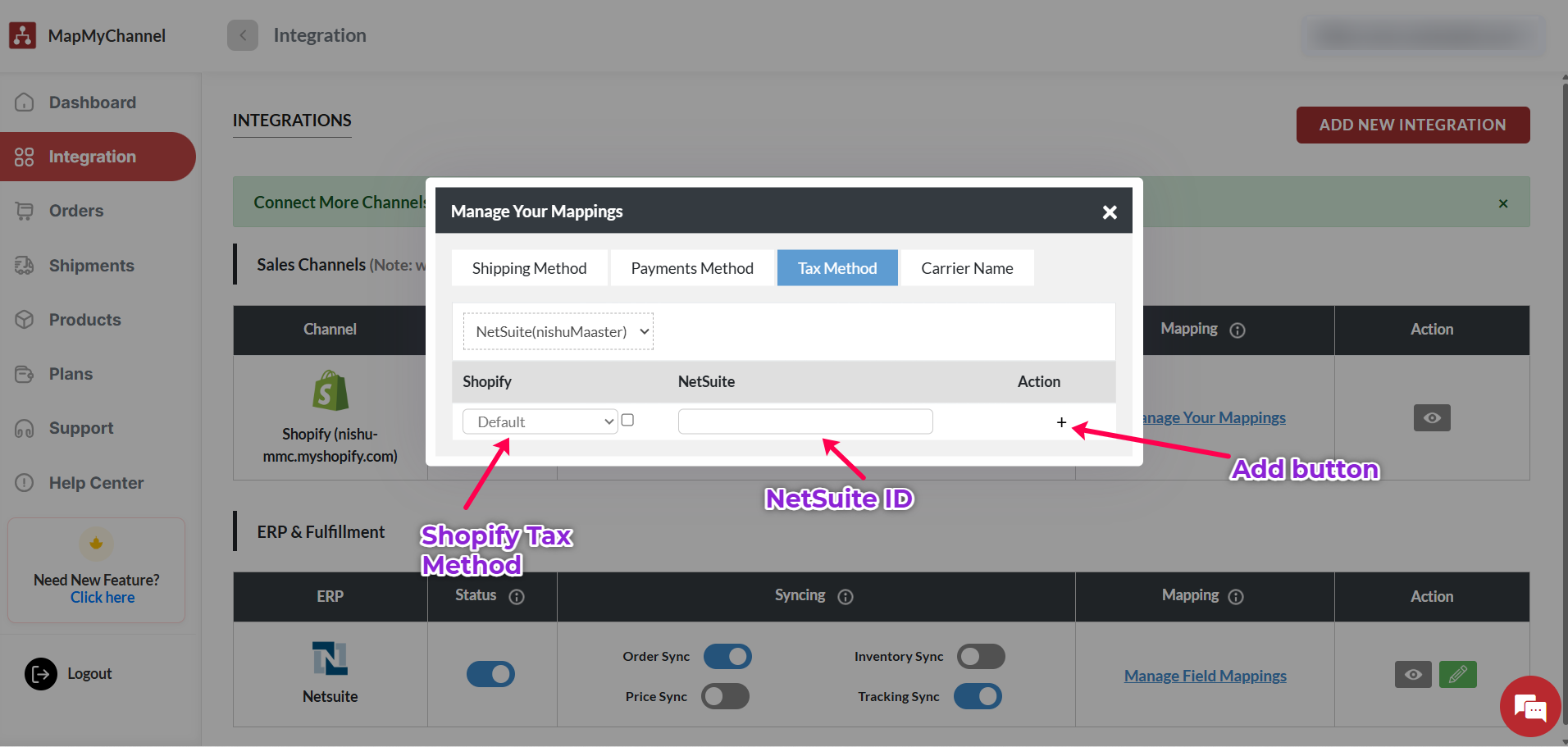 MMC's Shopify Tax Method Mapping to NetSuite Tax Method
If you have created custom Shopify tax methods, then click on the checkbox, enter the exact Shopify tax method name, and then enter the NetSuite tax method internal ID and click on the plus icon. Once created, you can delete the mapping by clicking on the delete icon or add more by clicking on the plus icon under the Action column. Refer to the image below.
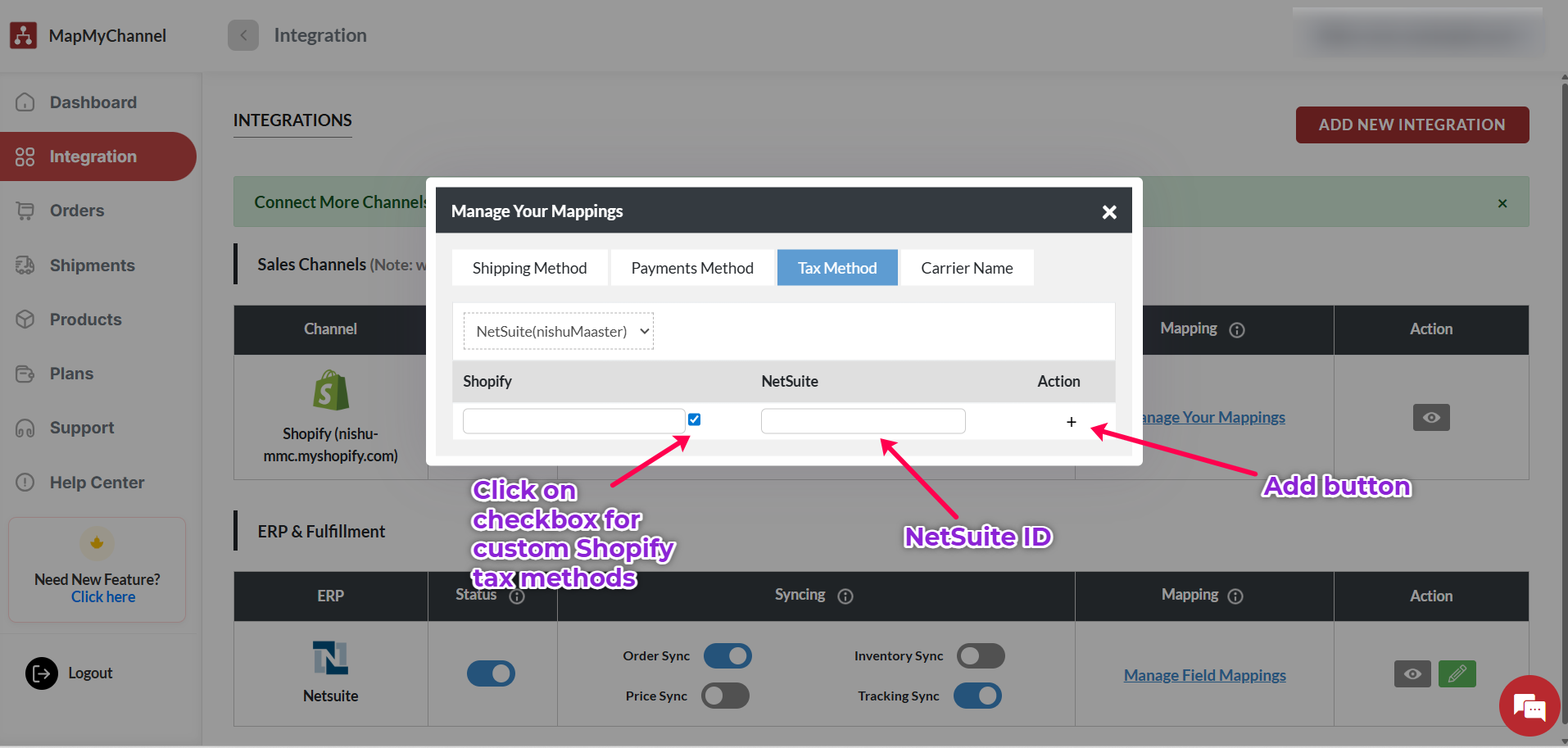 MMC's Custom Shopify Tax Method Mapping to NetSuite Tax Method
4. Carrier Name
This carrier name allows you to map your Shopify carriers to NetSuite carriers. To do this, enter the Shopify carrier name, enter the NetSuite internal ID, and click on the plus icon. You can add multiple carriers by clicking on the plus icon and can delete the existing one by clicking on the delete icon. Refer to the image below.
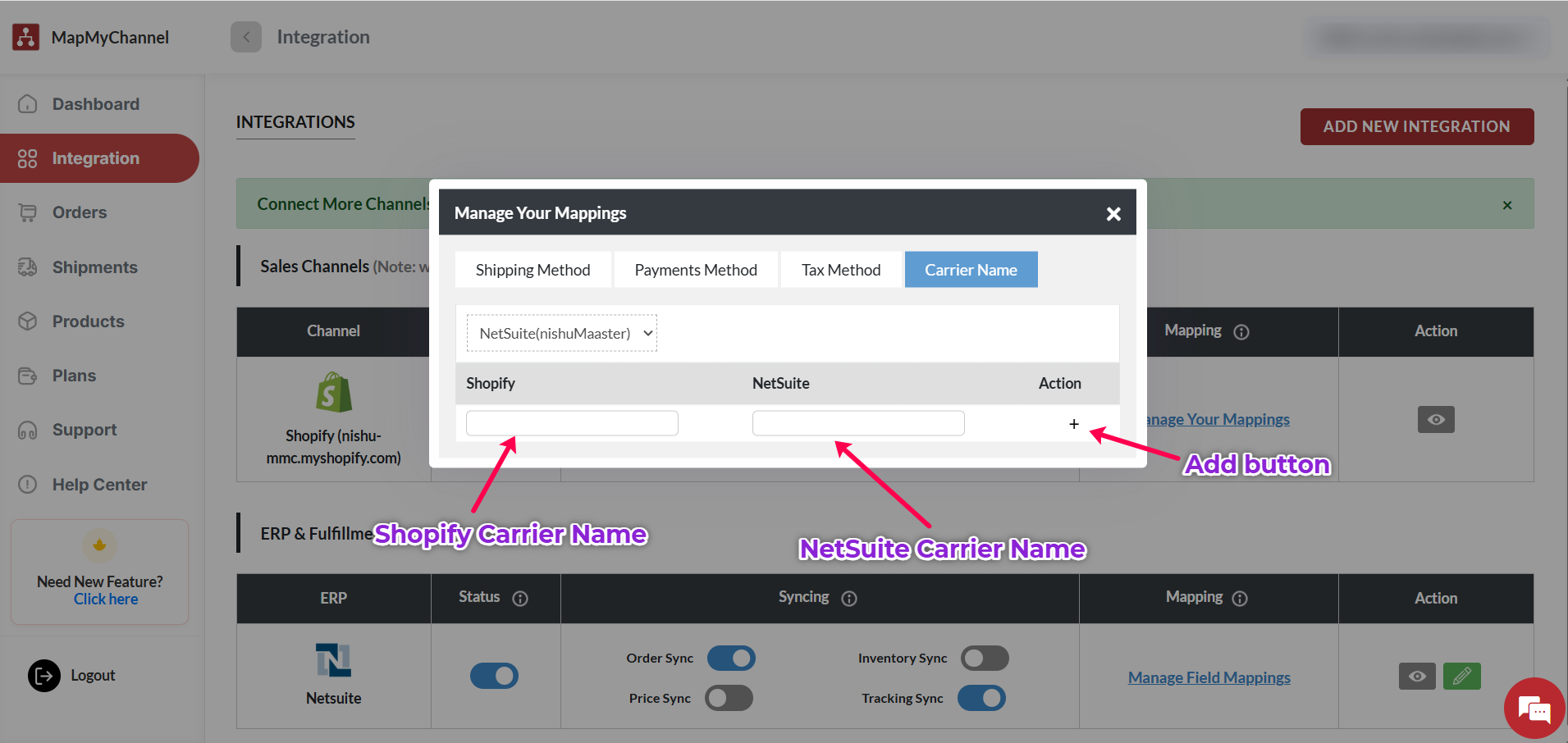 MMC's Shopify Carrier Mapping to NetSuite Carrier Mapping
Why This is Important
Avoid Sync Failures: Orders won’t get stuck due to unrecognized carrier/method codes.
Accurate Delivery: Ensures customers receive their orders using the intended carrier and service level.
Efficiency: Reduces manual intervention, saving time for sellers.